Using XR glasses for UI/UX design and development
- Authors
- Link
- Alex Noel

- Last updated
XR, short for extended reality, is the umbrella term for virtual reality, augmented reality, mixed reality, smart glasses, passthrough headsets, and spatial computing devices.
It’s not as popular now to talk about sipping sangria or margaritas on a beach while working on your fancy remote job, but the idea of working outside of a traditional office has been and always will be an appealing fantasy.
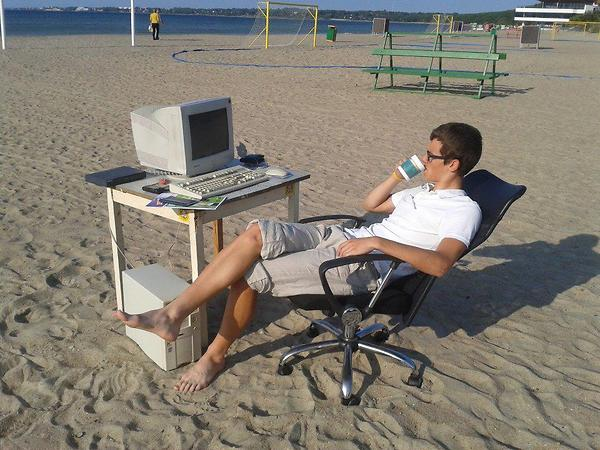
But for most people who build interfaces (and for me too!) the fantasy meets reality the moment you open your laptop outside…
And I’m not even talking about screen glare, privacy issues, hangovers, or the fact that your chair is literally killing you. The problem in this case is way more prosaic: one screen is not enough for front-end work, and the laptop screen is the worst screen to be stuck with. You can try portable monitors, but they are bulky, still small, fragile, and power-hungry.
When you are designing or building an interface, you are constantly comparing things: design canvas, references, devtools, your coding IDE, AI agent window, issues, docs, and these are just the basic necessities.
And then there are the health problems that sneak in while you are pretending this is fine:
- Eye fatigue from small text, glare, low contrast, and long sessions at a fixed distance
- Neck and shoulder tension from looking down at a laptop display
- Rounded upper-back posture from trying to bring your face closer to the screen
- Wrist and hand fatigue from doing precise UI work in a cramped position
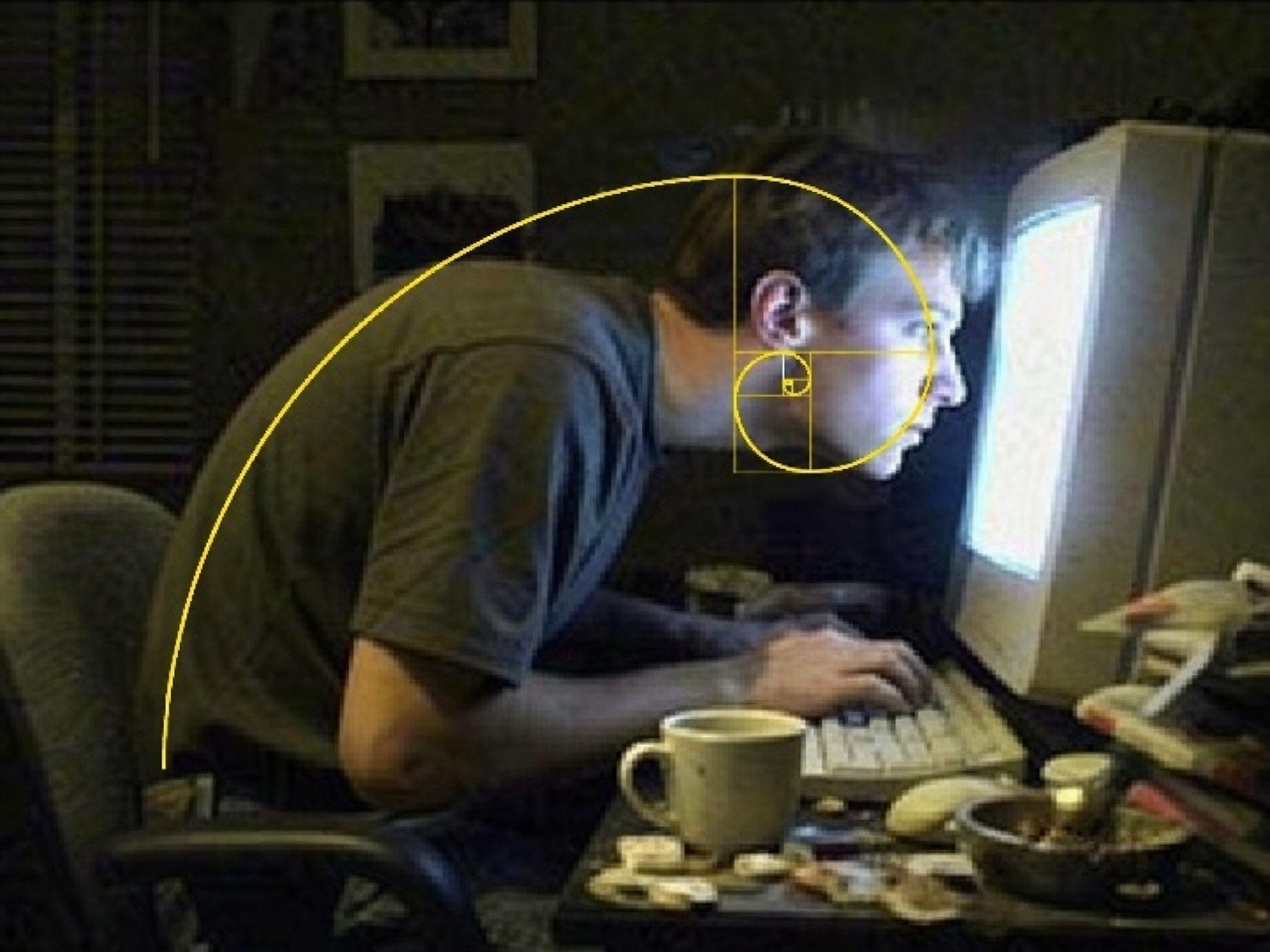
XR glasses will not magically remove all the problems - you still need breaks and a good chair (please, buy one if you haven’t already).
But they definitely move the needle toward a solution, because the display no longer has to be physically attached to your laptop hinge.
The first potential alternative to monitors
Before getting too excited, we need to be specific about the hardware, because the naming is quite messy. Some devices fully replace your view of the world, some overlay simple information into your field of view, and some are basically wearable external monitors.
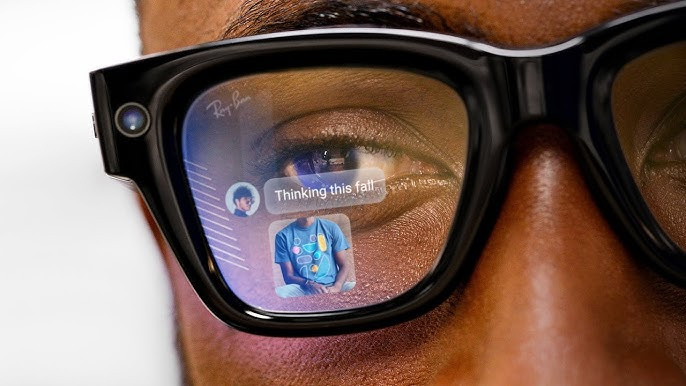
For our specific use cases, that means the latter: a pair of glasses that can act as a portable display and check the following boxes:
- Can it give us enough screen space for a browser, editor, design canvas, and AI assistant?
- Can it reduce the posture penalty of working on a laptop in awkward places?
- Can it be crisp enough to read small text for hours without eye strain?
- Can it let us interact with software through voice, gaze, pointer, and gesture instead of only keyboard and trackpad?
Some of these requirements are subjective, yet important. Let’s go over the current state of the hardware against some of them and see where we stand right now.
Current state of XR: Are we there yet?
Short answer: yes for a portable secondary-screen setup; no for replacing a full, all-day professional UI/UX design and front-end development workstation yet.
Tech specs
As of June 2026, the market has split into a few categories:
| Category | What it is good at | What still hurts |
|---|---|---|
| Lightweight XR/display glasses | Portable private screen, travel work, gaming, media, quick coding sessions | Limited field of view, IPD/fit sensitivity, edge clarity, glow, brightness outside, screen drift (not an issue with 3DoF), software is raw and buggy |
| Full XR headsets | Rich spatial apps, eye/hand tracking, multiple windows, stronger mixed reality | Weight, battery, cost, heat, dizziness, social awkwardness, not great for everyday desk-length sessions |
| Smart/AI glasses | Audio, camera, quick context, notifications, translation, assistant workflows | No display, or one limited to text/icons rather than a full workspace |
| Experimental XR glasses | Early access to the next form factor, like Project Aura | Not publicly available until the end of 2026 |
The current lightweight glasses are the most interesting category for this article because they look and pack down more like sunglasses than a headset. They usually connect over USB-C DisplayPort and act as a display. Some advanced models add spatial capabilities like head, eye, and hand tracking, and even 3D AR modes.
Some devices worth mentioning:
- XREAL One Pro focuses on a wider field of view and native spatial display modes.
- XREAL 1S keeps the display-glasses form factor while improving sharpness and weight.
- VITURE Beast offers a wide field of view and the SpaceWalker multi-screen ecosystem.
Overall, the specs look impressive. The whole industry has shown massive progress over the last few years, making a huge leap from bulky plastic helmets to something that can actually fit in your pocket. The marketing screen sizes are already in the 120-135 inch range, which is more than enough for a front-end workspace. The price points are also coming down, with some models under $400.
But the phrase “virtual 135-inch screen” can be misleading. Don’t chase the biggest FoV and resolution when you are choosing XR glasses! Pay close attention to pixel density - that’s what determines how crisp the text will be. Even though the screen is huge, it might be crisp only in the center, with blur and distortion outside of your direct gaze.
You can estimate angular pixel density with pixels per degree: divide the per-eye horizontal resolution by the horizontal FoV in degrees. Using each display’s aspect ratio to derive horizontal FoV, XREAL 1S is roughly 1920 / 45 = 43 PPD, while XREAL One Pro is roughly 1920 / 51 = 38 PPD. In practice, perceived text sharpness still depends on edge clarity, IPD fit, optical design, focus, and how much of the advertised FoV is actually crisp.
Software and ecosystem
This is where the good news ends. The hardware is already good enough for many people to use as a portable screen. But the software ecosystem is still in its early days, especially for productivity and creative work.
For example, XREAL does not have an app for iOS or macOS, which means that there are no native ways to use spatial controls or 3D modes on those platforms. You can use the VITURE SpaceWalker app on iOS and macOS, but it’s quite raw.
But there are promising signs: Google is building Android XR, and Project Aura is meant to support an ecosystem of headsets and glasses with Android apps, Chrome, Google Play, familiar developer tools, and AI assistance, so hopefully we will see more software support and better cross-platform compatibility in the next year.
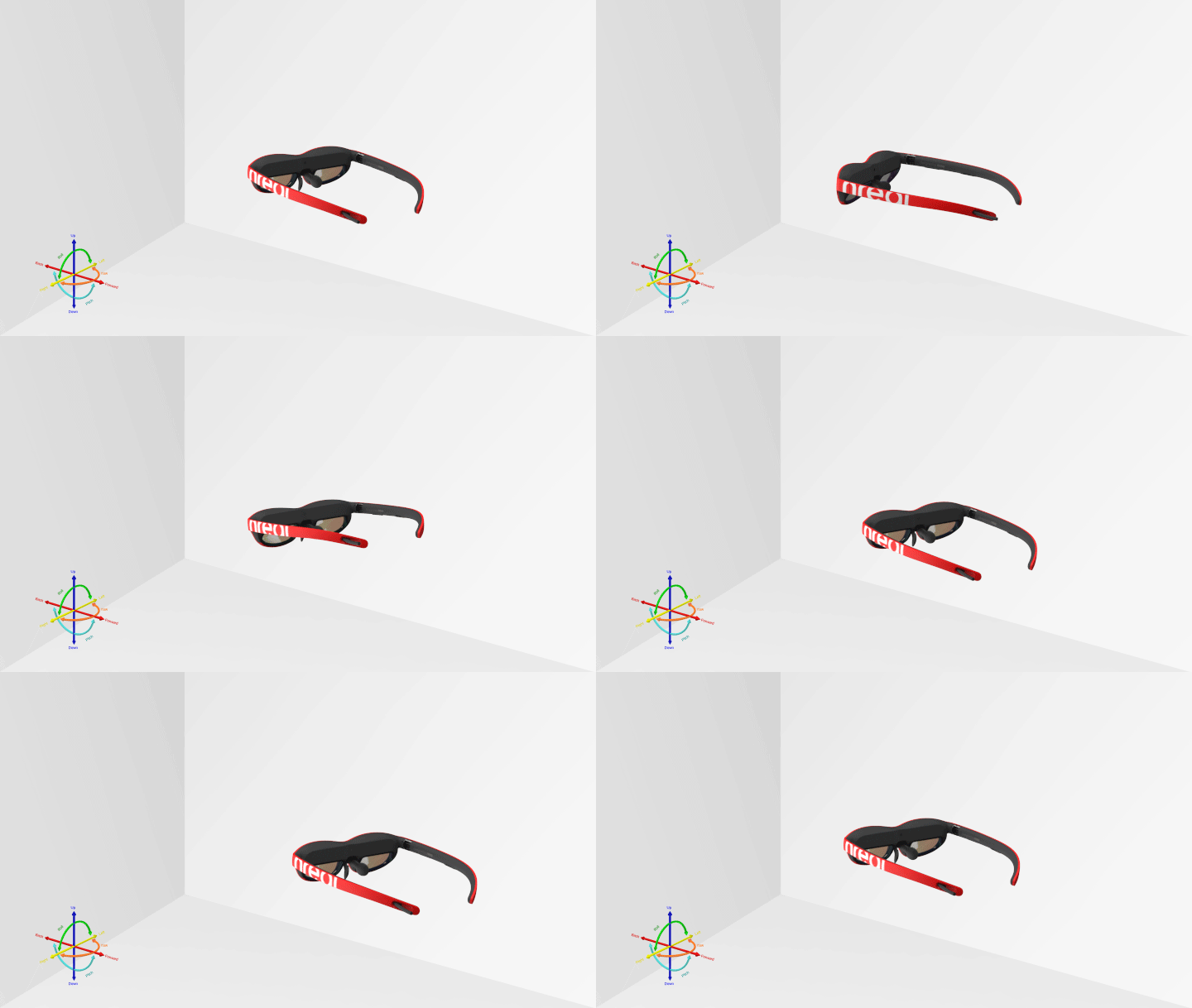
As for the web, there’s already a technical bridge into this world. WebXR gives browser-based apps a way to talk to XR hardware: headset displays, motion controllers, hand tracking, and spatial input.
I haven’t tested this yet, but let me know if you have! It is not clear how well it works with the current glasses, but it is a promising path for web-based UI/UX tools to add native XR support without building custom drivers or software layers.
tl;dr
To sum up, answer our questions above, and add some perspective from my personal experience testing the XREAL 1S and VITURE Beast:
- Can it give us enough screen real estate? Yes
- Can it reduce the posture penalty? Yes
- Can it be crisp enough to read small text? Yes, BUT it depends on the model and your fit. Flagship models will be good enough for many people.
- Can it let us interact with software through voice, gaze, pointer, and gesture? Not yet. Voice control is there, but the rest is still early, buggy, and not widely supported.
Worth waiting for: Project Aura
If you want to give XR a try but are not in a hurry, I’d highly recommend waiting for Project Aura devices to become available at the end of 2026 or the beginning of 2027.
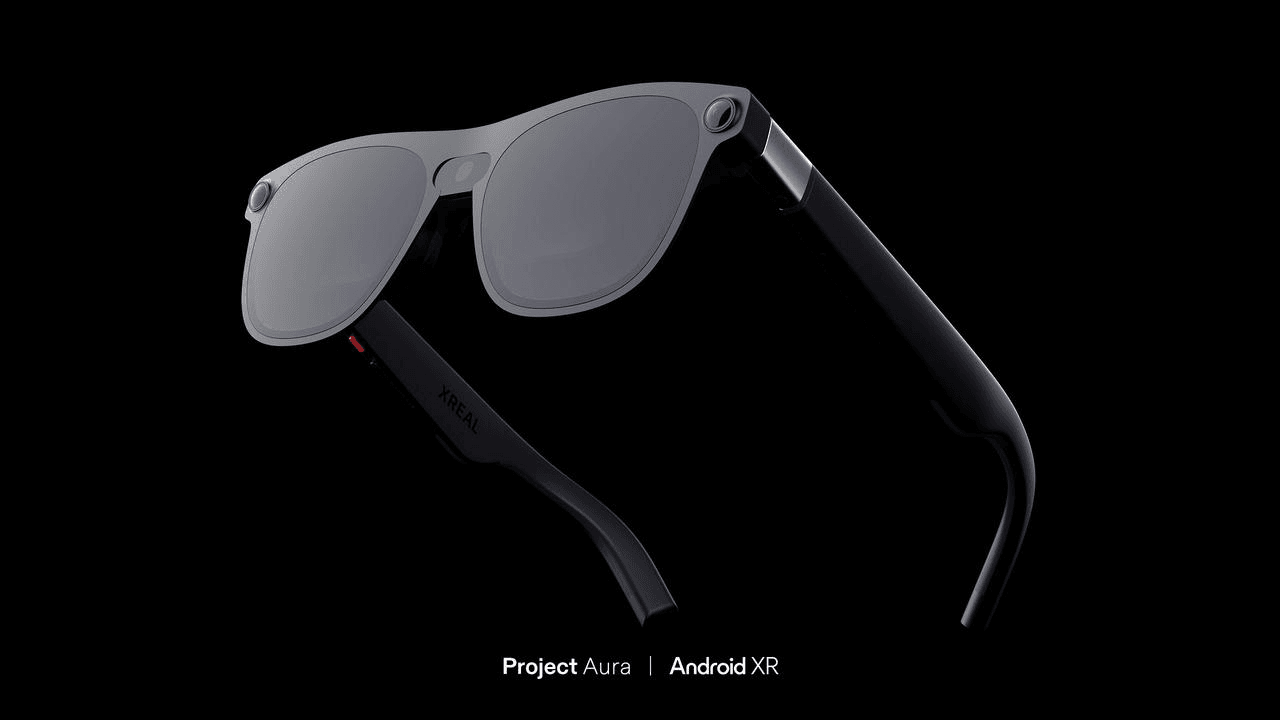
The main reason is that Aura is meant to provide a bigger FoV (70 degrees), better software support, and a more polished experience than the current crop of glasses.
Based on what they promise, it seems like a huge leap forward that could render the current generation obsolete. It is also designed to be more of a universal platform for Android-based XR devices, which means it should have better cross-device compatibility and a stronger ecosystem of apps and tools.
Experimental input methods
Most front-end tools were designed around one assumption: the user has a keyboard, a mouse or trackpad, and a flat screen. XR breaks that assumption. You can still use a wireless keyboard and mouse, and for some work you probably should. But you can also add:
- voice
- eye position
- head movement
- phone motion
- hand tracking
- AI-assisted selection
Besides figuring out the current state of things, let’s also consider the fastest and easiest way to communicate intent and context to your PC:
Voice control
When you are building UI, most of the groundwork can be expressed as intent:
- “Use the same spacing as in the pricing section.”
- “Create a variant for the mobile nav.”
- “Remove this weird button shift on hover.”
- “Add a hero section using existing components.”
This pairs well with AI agents and visual platforms like Plasmic that support MCP or ACP. You can steer the agent with high-level intents, and then use the visual canvas to review, refine, and polish the output using other input methods.
Voice control also works well with other inputs, especially an AI pointer. You can point at the thing you want to change, and then say what you want to do with it. That is a much more natural way to express intent than describing the target in words.
Using eye position
Eye tracking feels like the obvious XR input method because looking is already how we choose context. If your eyes are on a button, a chart, or a broken layout, the system can infer that this is probably relevant.
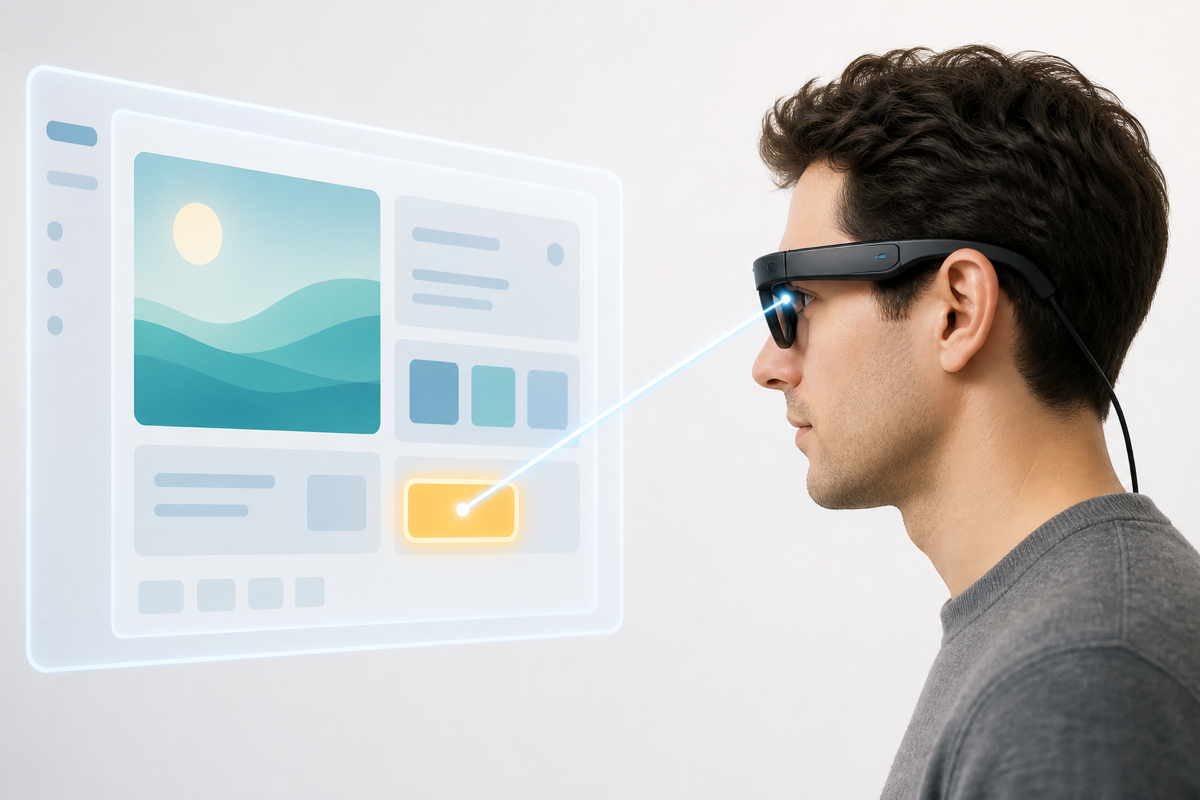
But gaze is not the same as clicking, because your eyes are constantly scanning. If the system treats every glance as intent, the interface becomes exhausting. Good gaze interfaces usually separate pointing from activation:
- Look at the target.
- Confirm with a pinch, voice command, button, dwell, or controller action.
- Let the system use eye position as context, not as an accidental trigger.
Unfortunately, the tech is not quite there yet, and the software support is even further behind. But it’s not standing still - there are some useful examples and research directions:
- ShapesXR’s gaze and pinch interaction lets users select objects by gaze and confirm with a pinch.
- Tobii’s XR input paradigms explain why gaze can replace pointing in some cases, but still needs an explicit activation signal.
- Google Research’s Online-EYE explores continuous, implicit eye-tracking calibration for XR using controller interactions with UI elements.
- WebGazer.js is an older but still useful example of browser-based webcam eye tracking. It is not an XR glasses solution by itself, but it shows how eye position can become part of web interaction.
For front-end work, gaze is interesting less as a click replacement and more as an attention signal. Let’s say you are reviewing a Plasmic canvas in XR:
- Your gaze lands on a misaligned card.
- You say, “Fix this spacing.”
- The system knows which component instance you were looking at.
- The AI agent reads the component tree, spacing tokens, breakpoint rules, and nearby elements.
- It proposes or applies a change.
That is a much more natural loop than describing the target in a long prompt.
Hand tracking and gestures
Hand tracking allows for direct manipulation of virtual objects: you can grab, drag, resize, and interact with UI elements in a way that feels more intuitive than using a mouse or controller.
For UI/UX design and front-end development, hand tracking can be especially useful for spatial tasks like:
- Arranging panels and windows in a 3D workspace
- Manipulating 3D assets and components
- Menu navigation and tool selection
- Testing immersive flows and interactions
However, hand tracking can also be less precise than traditional input methods, especially for tasks that require fine control. It can also be more tiring to use for extended periods of time.
Motion controllers
They are not as elegant as eye and hand tracking, but they solve a practical problem: precision in space.
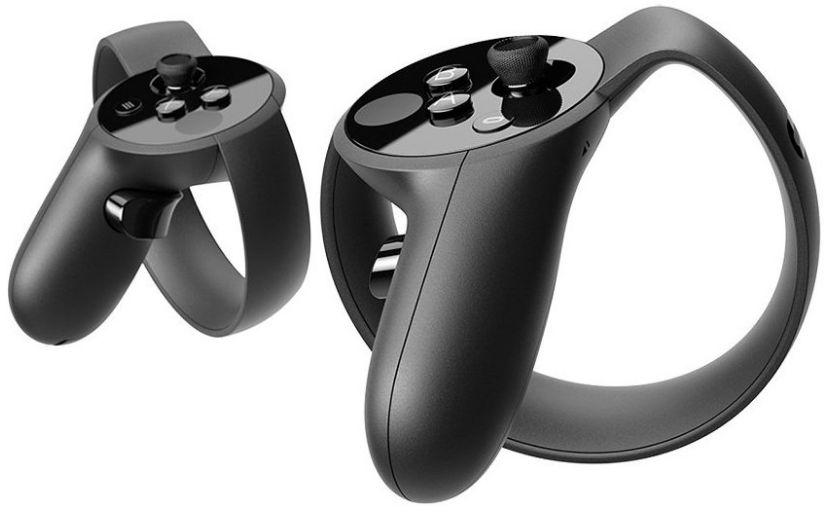
For 3D objects, whiteboarding, spatial layout, and design critique, a tracked controller can be more predictable than hand gestures. It gives you:
- A stable ray pointer
- Buttons for explicit confirmation
- Dragging and grabbing
- Haptic feedback
- Lower ambiguity than pure hand tracking
For UI/UX design, motion controllers are especially useful when the workspace is not an XY flat surface. In an XYZ 3D space, when you are placing panels, arranging spatial components, testing immersive flows, or manipulating 3D assets, the controller is just way more comfortable because of that additional Z dimension.
And in 2026, the controller does not necessarily have to be a dedicated VR wand. In some ecosystems, your phone can act as the pointer!
For example, VITURE’s SpaceWalker allows you to use the phone as an air mouse or laser pointer: move the phone to move the cursor in the glasses, tap the phone screen to select, and swipe to scroll. That is not a perfect professional solution, but it’s definitely making XR controls more accessible.
AI pointer - how is it applicable to XR?
Google DeepMind recently published an article on reimagining the mouse pointer for the AI era. The key idea is simple but powerful: a pointer should understand what it is pointing at, as well as understand the context it is in.
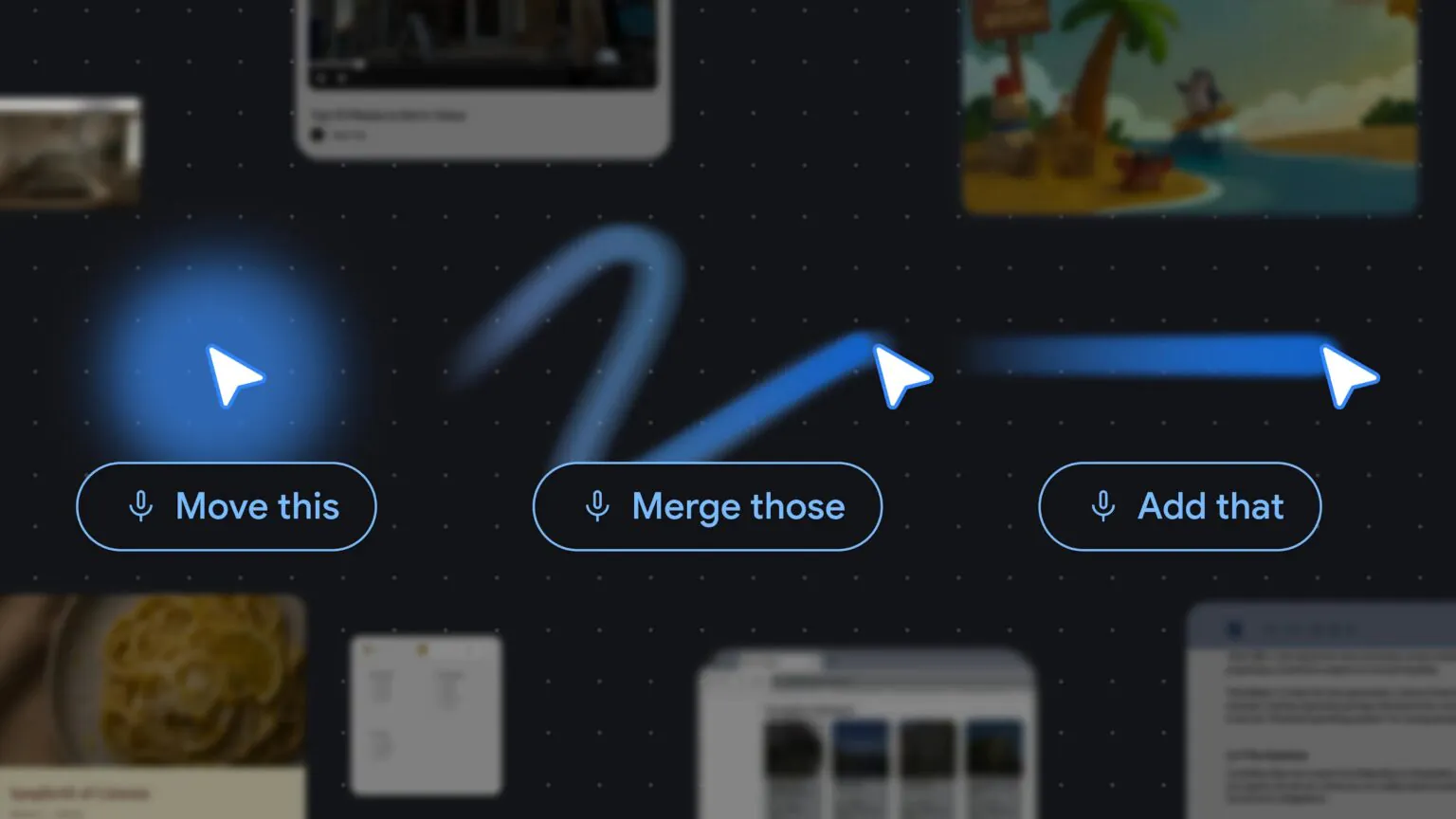
Usually, when you ask an AI tool for help, you have to attach the context to the chat by pasting images, files, etc. The AI pointer simplifies that by introducing “this” and “that” instead of describing context, which reduces friction and makes it more natural to express intent:
- Summarize this paragraph. -> “Summarize this.”
- Paste this code block between a hero and a CTA. -> “Paste this here.”
- Upload this screenshot into the database. -> “Upload this to DB.”
- Fix the blue button that is broken. -> “Fix this.”
- Compare this image with this table. -> “Compare this.”
DeepMind describes this as combining visual context, semantic understanding, pointing, and speech. That is exactly why it becomes interesting in XR.
For UI/UX design and front-end development, this could become a very strong pattern:
- Point at a component in the preview.
- Say what should change.
- Let the AI inspect the component tree, styles, props, tokens, and breakpoints.
- Review the proposed change visually.
- Accept, refine, or undo.
That might become especially powerful in combination with a visual builder like Plasmic, where the canvas already knows about components, variants, design tokens, responsive behavior, and content models. The AI does not have to guess from a screenshot alone. It can connect visual selection with structured project data.
Example setup
Here is a practical setup for experimenting without spending a fortune:
- A Mac mini as the main machine (optional. A laptop works too)
- A pair of XR glasses that support USB-C DisplayPort input
- A wireless keyboard and mouse or trackpad
- Optional: motion controllers like Oculus Quest controllers, or a phone-based pointer app
- Plasmic Studio in the browser
- An AI agent connected to your project workflow
- The Gemini desktop app to use Magic Pointer for AI pointer capabilities
The Mac mini here is optional, you can also use a laptop. But the XR setup lets you get a cheaper, higher-spec desktop setup without spending a ton of money on a monitor!
Final thoughts
Even though XR glasses are not yet a perfect solution for everyday front-end work, they are already good enough for many people to use as a portable screen. The technology is improving rapidly, and I’m really excited to see how it evolves in the next year or two!
What are your thoughts on using XR glasses for UI/UX design and development? Have you tried it out yet? What was your experience like? Let us know on social media or join our Slack!
Follow @plasmicapp on Twitter for the latest updates.